Timesheet rules
Timesheet Rules help automate which pay items are applied to an employee's timesheet. They work in a similar way to bank rules: you choose the conditions and the result, and Gimbla applies the matching pay item when the timesheet is approved.
Timesheet Rules provide a simpler and more transparent way to automate common pay conditions without the complexity of a full award interpretation system. Instead of trying to interpret an entire award, you create only the rules that are relevant to your business. This makes each rule easier to understand, review and maintain.
⚠️ Important: Gimbla applies the rules you create, but it does not determine which award, agreement or employment conditions apply to an employee. You should check that your rules and pay items meet your payroll obligations.
Examples of Timesheet Rules
- Apply a Sunday penalty-rate pay item when an employee works on a Sunday.
- Apply a different pay item when an employee works at a particular location.
- Apply an age-based pay item when an employee turns 16, 17 or 18.
- Apply an evening or shift pay item when an employee works during particular hours, such as between 6 pm and 9 pm.
How Timesheet Rules work
Each rule follows a simple structure:
When these conditions are met → apply this pay item.
For example, you can create a rule that says:
When the timesheet date is a Sunday, apply the Sunday pay item.
Because each rule clearly shows its conditions and result, it is easier to understand why a particular pay item was applied.
🧭 Navigate to
👣 Create a Timesheet Rule
In this example, we will create a rule that applies a different pay item when an employee works on a Sunday.
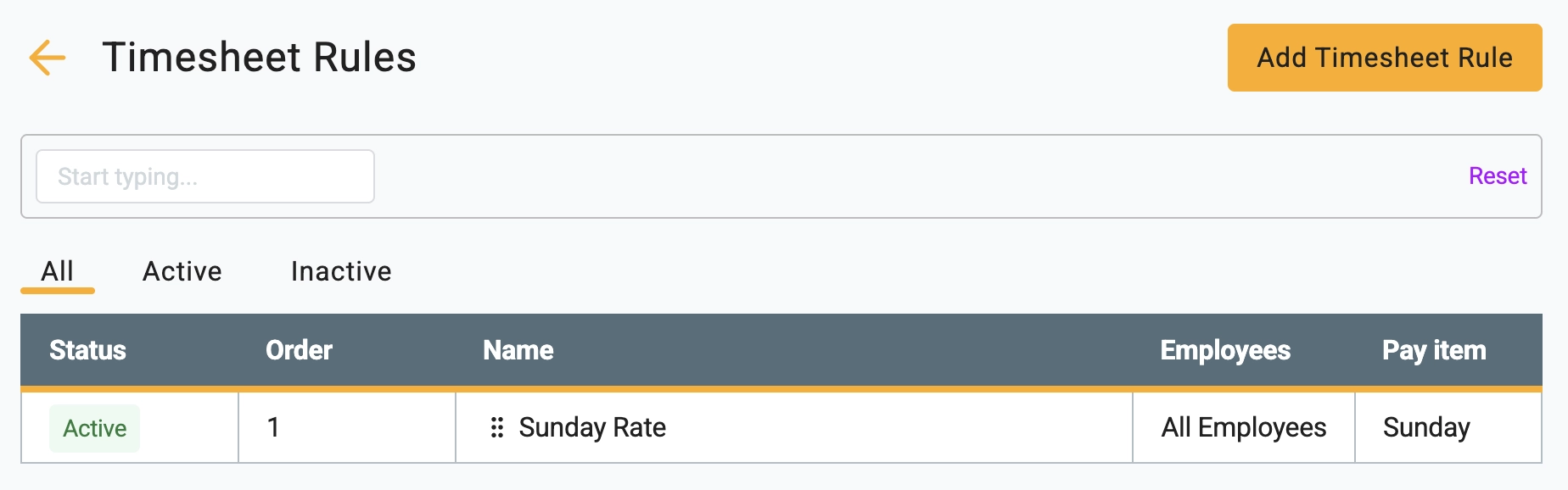
1 Open Timesheet Rules using the navigation path above, then click Add Timesheet Rule.
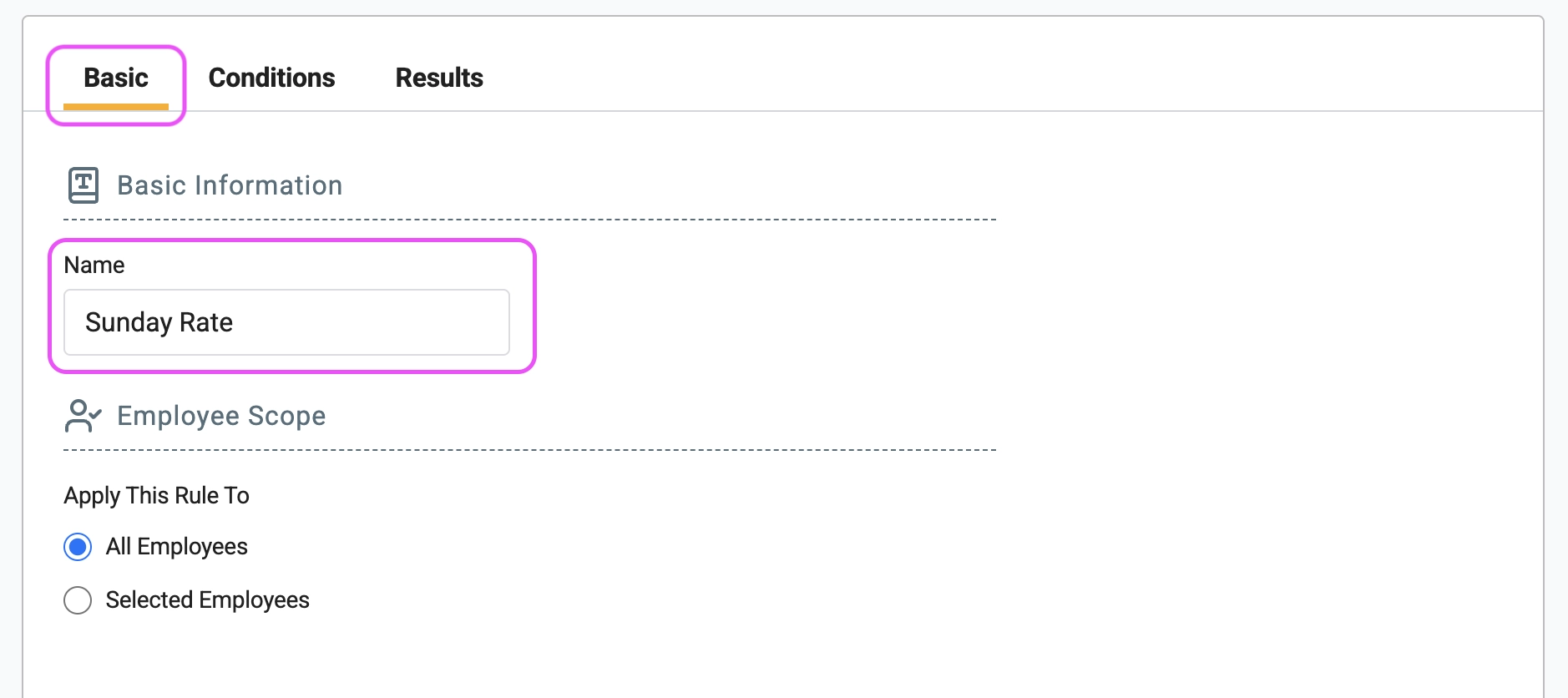
2 Under Basic, enter a clear name for the
rule, such as Sunday Rate
.
A descriptive name will make the rule easier to identify and manage later.
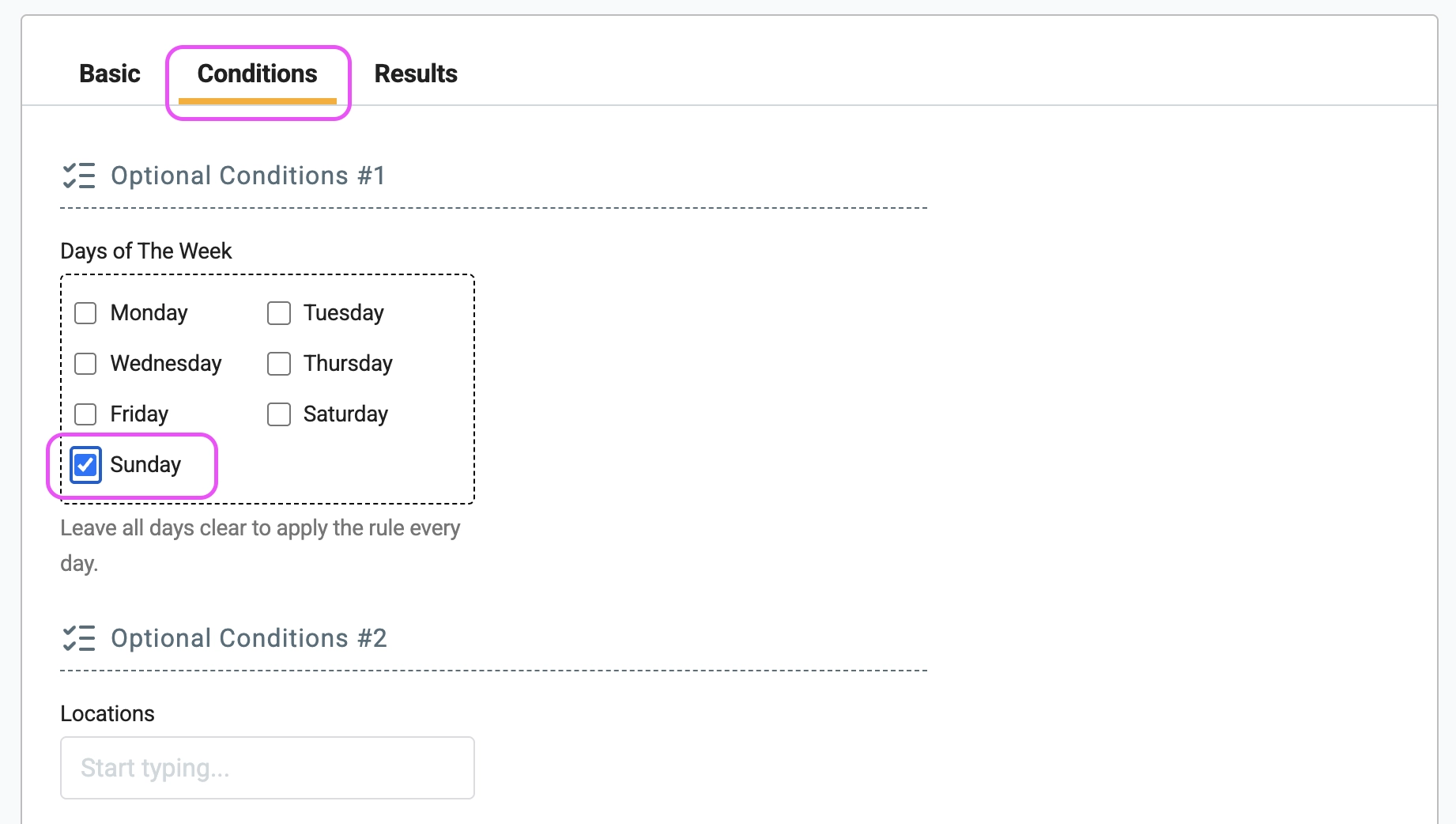
3 Under Conditions, choose when the rule should apply.
For this example, select Sunday. The rule will then match approved timesheets with a timesheet date that falls on a Sunday.
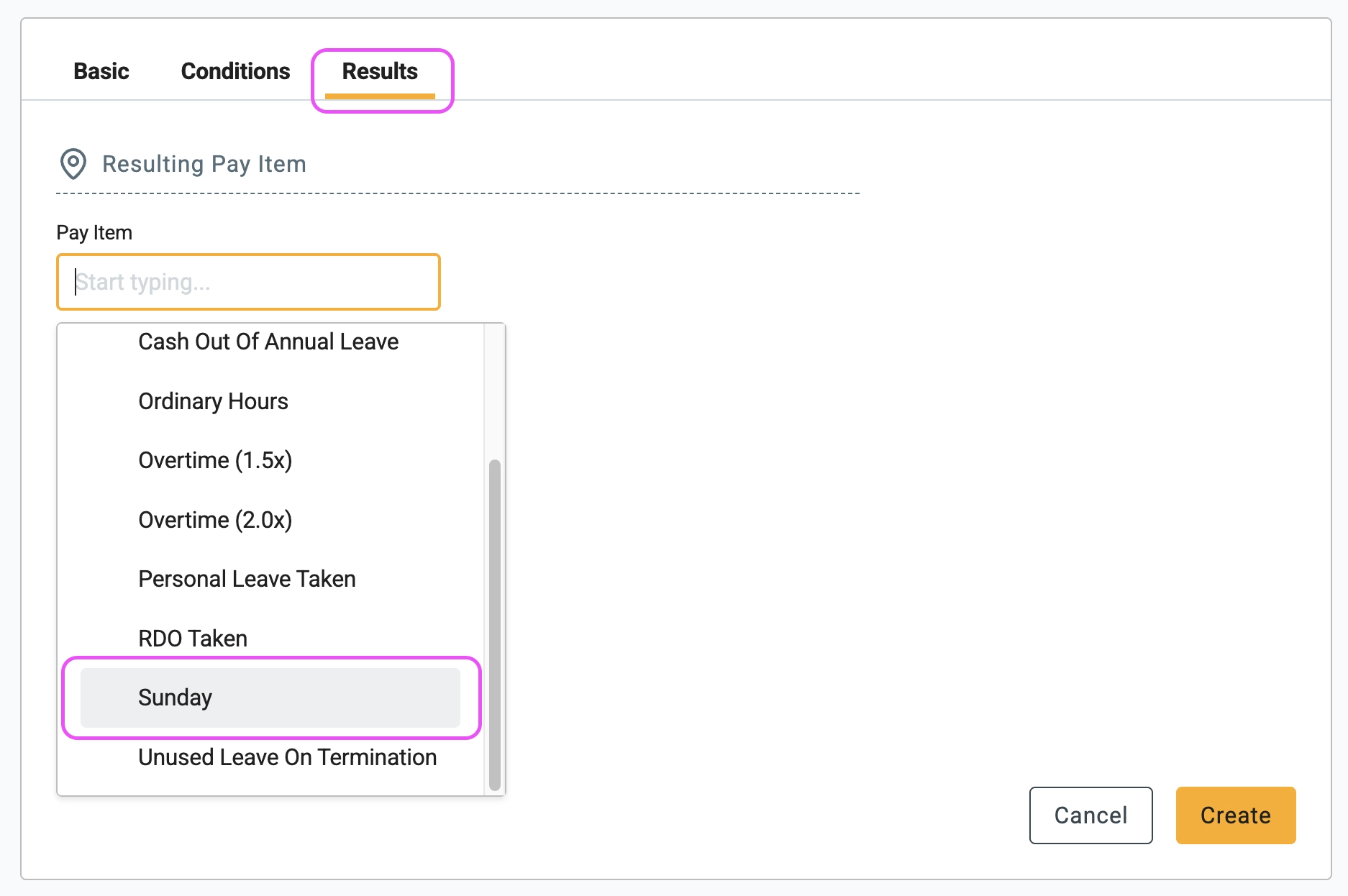
4 Under Results, select the pay item that Gimbla should apply when the conditions are met.
Make sure the required pay item has already been created in your payroll settings before setting up the rule.
5 Review the conditions and result, then save the rule.
🏁 Approve the timesheet and review the result
Open a timesheet that meets the rule's conditions and click Mark as Approved.
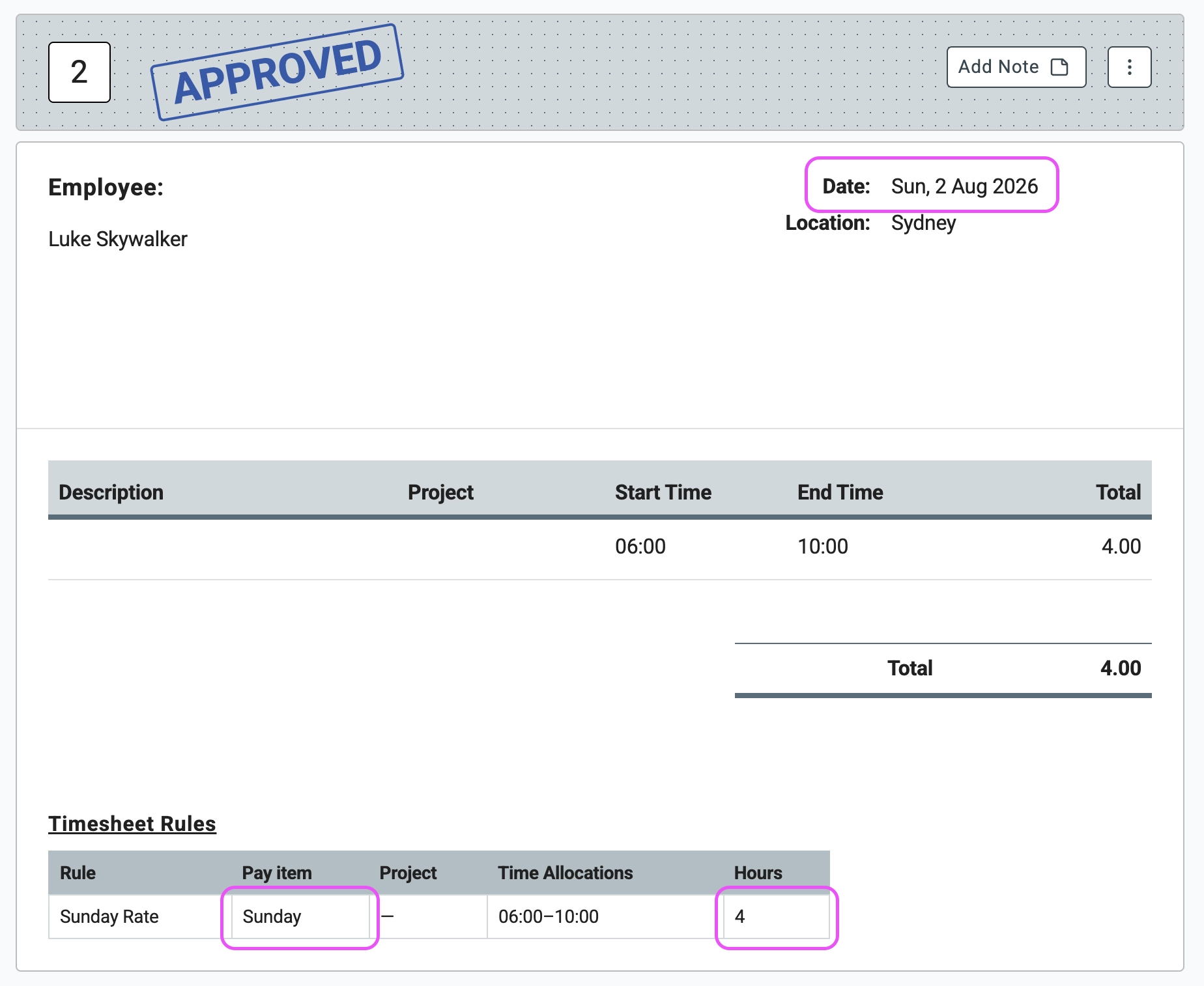
After the timesheet is approved, scroll to the bottom to see which Timesheet Rules were applied. In this example, the timesheet date falls on a Sunday, so Gimbla applies the Sunday pay item selected in the rule.
The applied pay item will then be carried through when the approved timesheet is included in a pay run.
🖇️ Notes
- Rules are applied on approval: Timesheet Rules are checked when a timesheet is marked as approved. Review the applied pay items before including the timesheet in a pay run.
- Create your pay items first: The pay item you want the rule to apply must already exist in your payroll settings.
- Use accurate information: Rules depend on the information recorded in the timesheet and employee profile. For example, an age-based rule requires the employee's date of birth to be correct.
- Use clear rule names: Names such as
Sunday penalty rate
orEvening shift after 6 pm
make your rules easier to review and maintain. - Check overlapping rules: More than one rule may be relevant to the same timesheet. Review the applied pay items to make sure the final result is correct.
- Test your rules: Before using a new rule in a live pay run, test it with a sample timesheet that meets the conditions and another that does not.
- Keep your rules up to date: Review your rules whenever pay rates, awards, agreements, employee classifications or workplace conditions change.
- Not a full award interpretation system: Gimbla does not automatically interpret every clause of an award or decide which conditions apply. Timesheet Rules provide a simpler way to automate the pay conditions you have configured.