How to Create Items (Products & Services)
This guide will walk you through how to add new items to your Gimbla account.
Adding your products and services as "Items" is a powerful way to streamline your workflow. By pre-loading your items, you save time when creating invoices and bills, ensure pricing is always accurate, and maintain consistency across your documents.
🧭 Navigate To
👣 Walkthrough
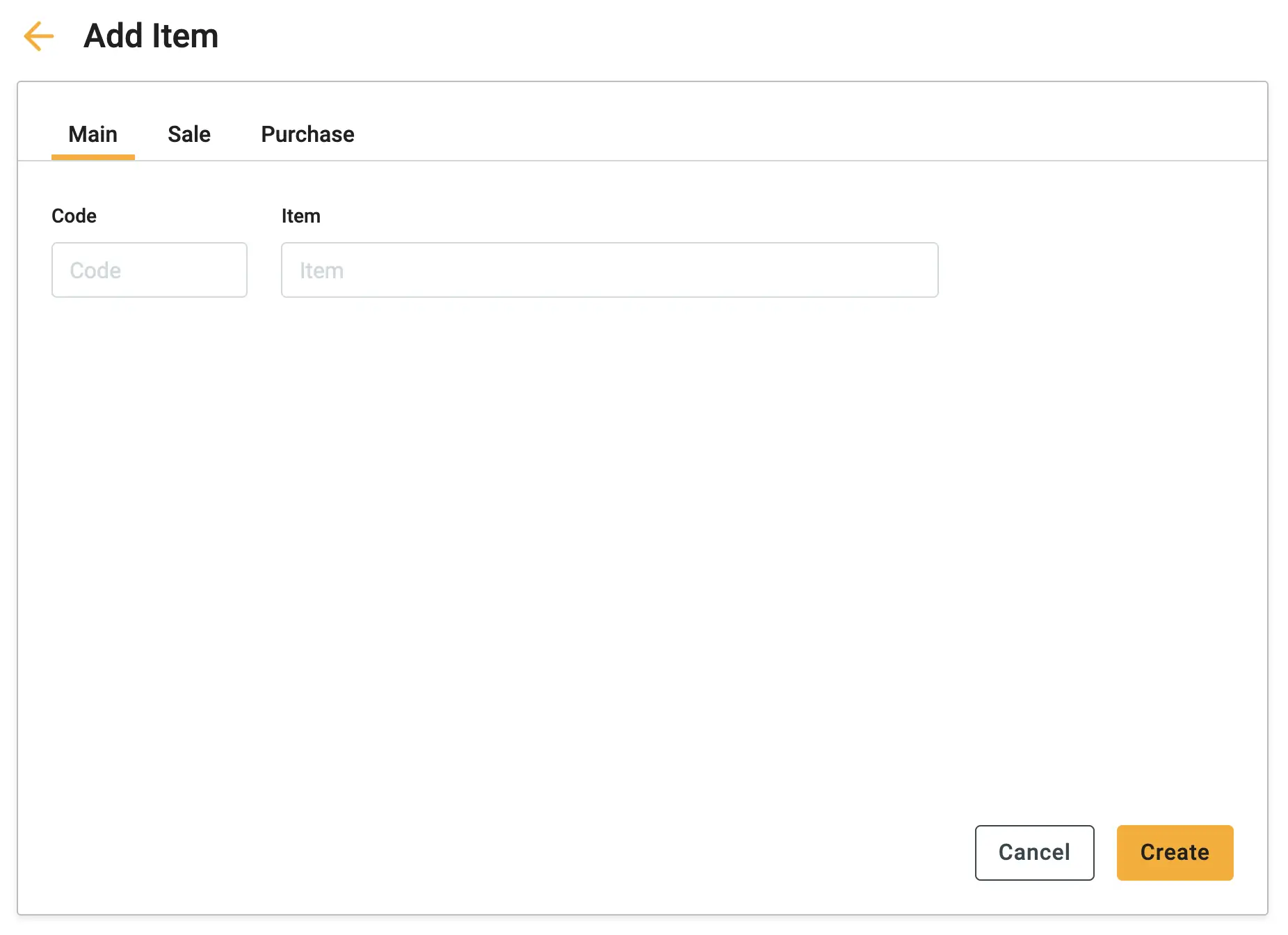
1 The "Add Item" form is organized into three sections. First, on the Main tab, define the basic identity of the item. Enter the Item Name (required) and an optional Code (SKU). You can also upload an image here for easy identification.
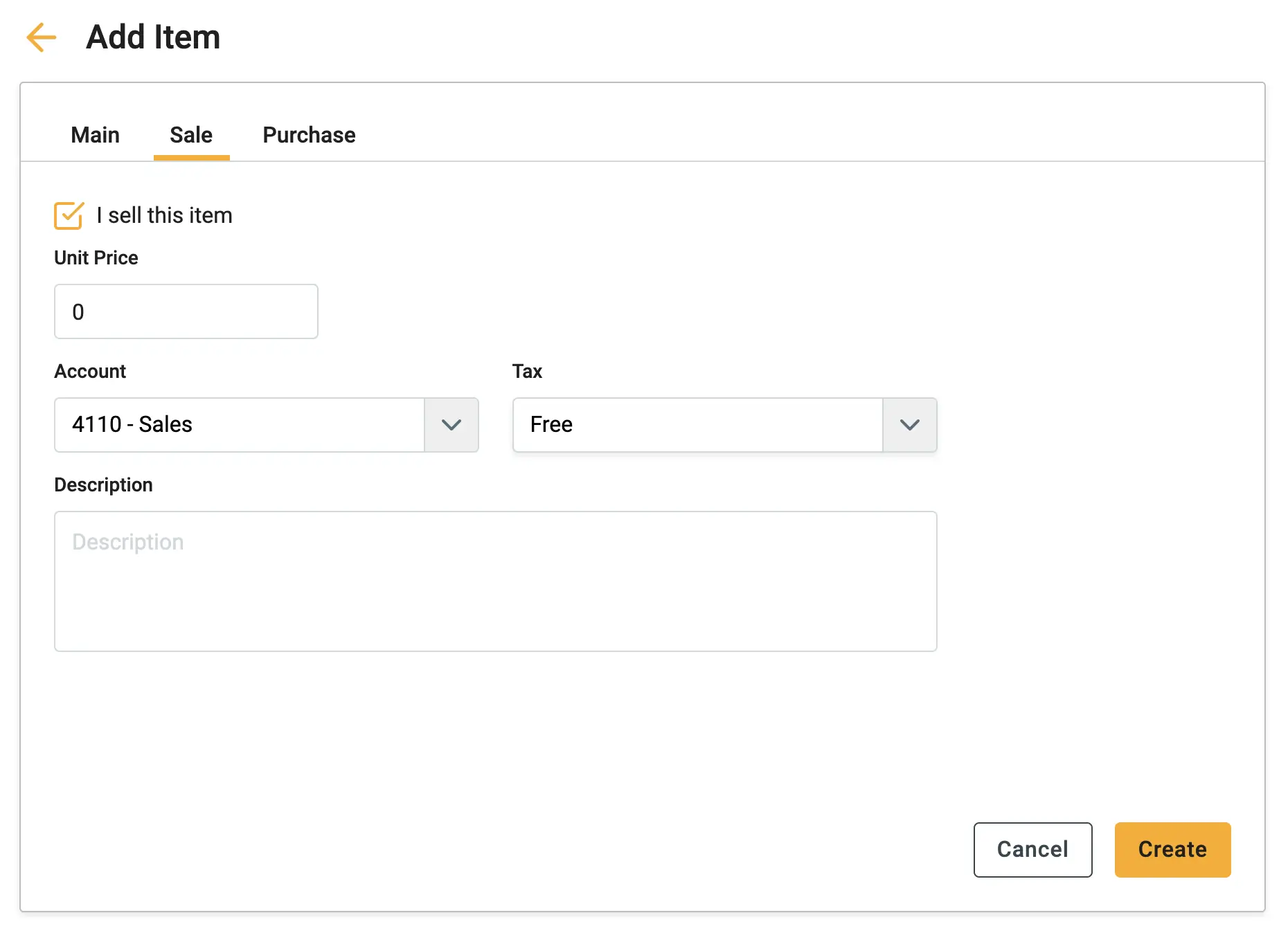
2 Switch to the Sale tab if you sell this item to customers. Check the box "I sell this item" to activate the fields. Enter the Unit Price, select the Income Account (e.g., "Sales"), and set the default Tax rate.
3 Switch to the Purchase tab if you buy this item from suppliers. Check the box "I purchase this item" to activate the fields. Enter the Cost Price, select the Expense Account (e.g., "Cost of Goods Sold"), and set the default tax rate for purchases.
4 Once you have entered all the necessary details, click the Create button. The item is now saved and ready to be used on any future invoice or bill.
🖇️ Notes
Take a minute to review the specific fields and how they affect your workflow. A brief description of the key settings follows:
- Item Name – The name of the product or service (e.g., "Web Design Services," "Standard T-Shirt"). This is the only required field.
- Code (SKU) – A unique identifier for the item or internal part number. You can choose to display this code on your customer invoices.
- Accounts – It is crucial to map items to the correct accounts. Sale items usually map to Revenue accounts (e.g., "Sales"), while Purchase items map to Expense accounts (e.g., "Cost of Goods Sold").
- Updating Prices – Regularly review your items list to ensure prices and costs are current. If a supplier changes their price, update the Purchase Price in the item settings once to ensure all future bills are accurate.