Customise Your Invoice Templates
This guide will walk you through how to customise your document templates in your Gimbla account.
Make every invoice a reflection of your brand. By customising your document templates in Gimbla, you can add your company logo, set a brand color, and define default text for titles and footers.
This not only creates a professional and consistent look but also saves you valuable time by pre-filling information every time you create a new invoice, quote, or other document.
⚠️ Important: All other invoice details — such as
your address, email, and contact information — can be updated in Business
Settings. Simply click the Edit
button next to your business,
and you’ll see the
Update Business Details
section.
🧭 Navigate To
👣 Walkthrough
1 On the Document Templates page, you will see a section labeled
Template
. Select the overall layout for your documents by
choosing from the different designs available (e.g., T1, T2, T3) to
find the one that best fits your business style.
2
To make your invoices instantly recognisable, go to the Company Logo section.
Click the Change Logo
button to upload your image file. If you
want the logo to appear on your documents, ensure the Display logo
checkbox is ticked.
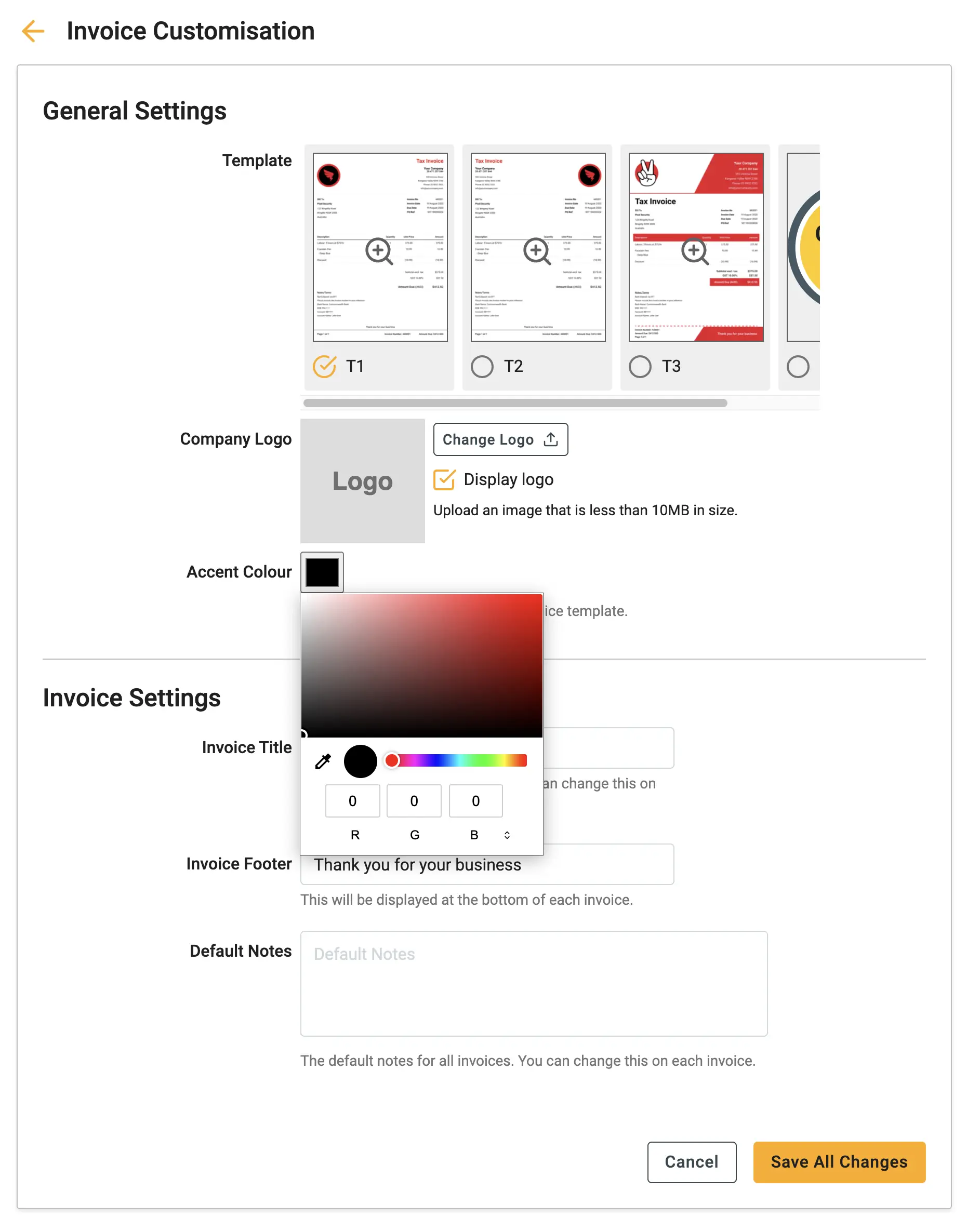
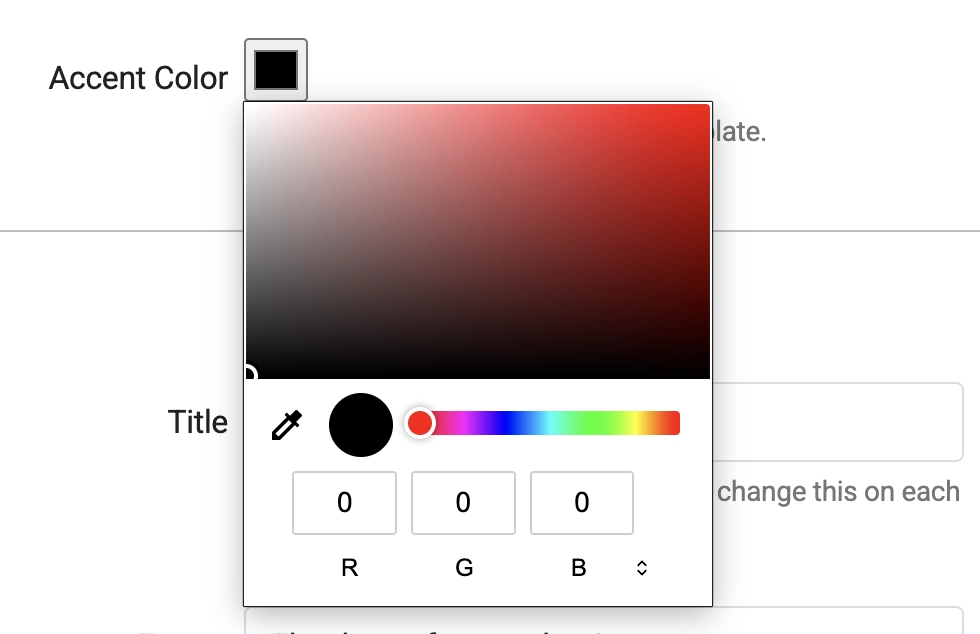
3 Set a primary color for your documents in the Accent Color section. Click the color swatch to open the color picker. You can select a pre-defined color or enter a specific HEX code to match your branding exactly.
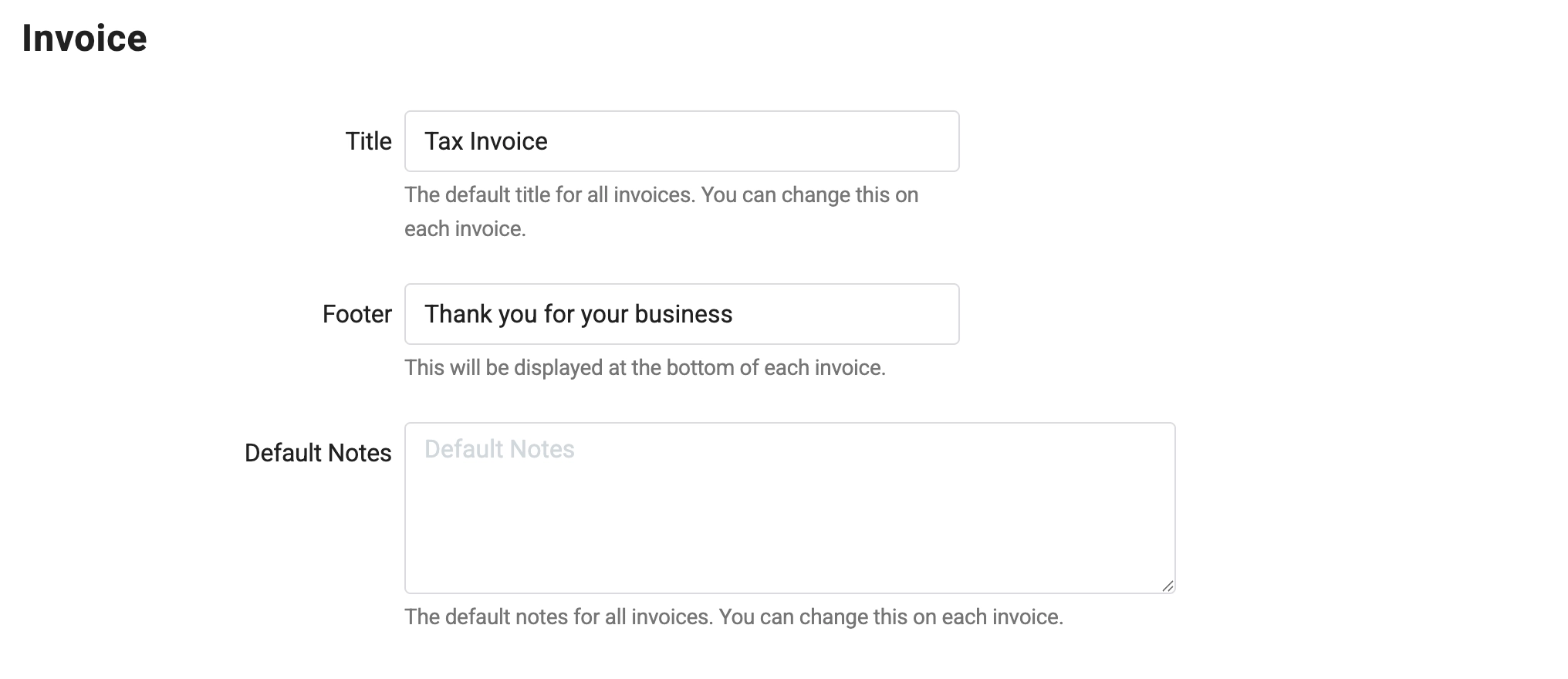
4 Finally, configure the Default Text Fields. Enter the Title
(e.g., Tax Invoice) and the Footer
text. Once you are happy with
your changes, they will be saved automatically and applied to all new
documents you create.
▶️ Video Tutorial
Prefer to watch? Our video guide walks you through the entire process.
🖇️ Notes
A brief description of each of the settings follows:
- File Requirements – For best results when uploading a logo, use a JPEG or PNG file that is 1MB or smaller.
- Display Logo
– If you prefer not to show a logo on specific templates, simply uncheck
the
Display logo
box. - Accent Color – This color is used for headings, lines, and other highlights on your invoices. It is a great way to align documents with your brand's color scheme.
- Title
– This is the main heading for the document (e.g.,
Tax Invoice,
Quote,
Credit Note
). This field is required. - Document Templates – The company logos and templates for different business documents; invoices, quotes and purchase orders.
- Footer – This text appears at the very bottom of every document. It is the perfect place for a thank-you message, your payment terms, or bank account details.