Budgets & Forecasting Are Now in Gimbla 2.0
Published November 16th, 2026 | Team Gimbla
Product release · 16 November 2026. Budgets and forecasting are now part of Gimbla 2.0, included in the Plus plan. Small businesses can plan monthly income and expenses, compare the plan with their recorded results and update the outlook for the months ahead, all within Gimbla.
Open Spark > Budgets to get started. Each budget has three connected views: Budget, Forecast and Actual vs Budget. They bring the original plan, the latest expectations and the accounting results into one workspace.
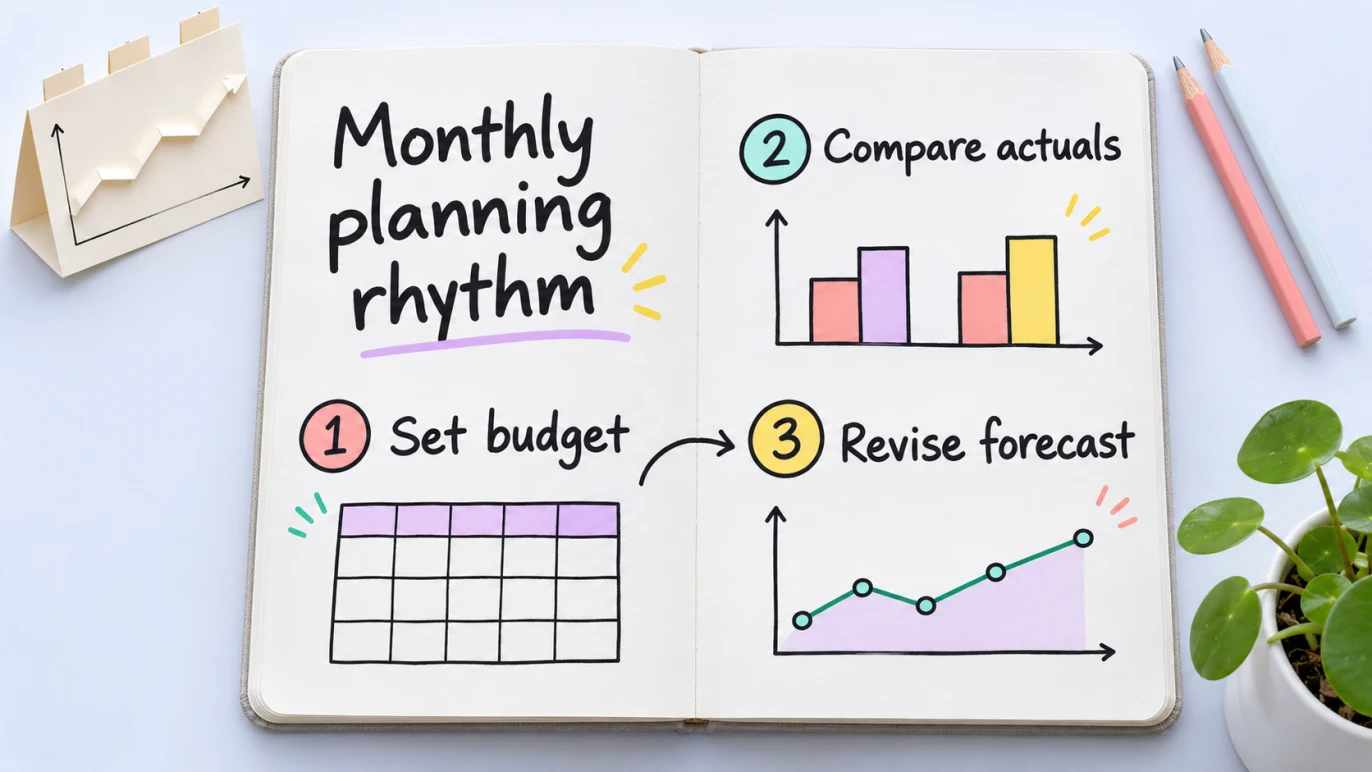
Keep the target visible. Use actual results to understand what changed, then revise the months ahead without overwriting the plan.
What the new feature includes
- Monthly budgets for the whole business or an individual project.
- A starting point from last year’s figures, another budget or a blank plan.
- Spreadsheet-style entry, formulas, fill tools and notes for your assumptions.
- A separate forecast that combines completed months’ actuals with your expectations for the remaining months.
- Monthly and period-to-date comparisons, with differences coloured by whether they help or hurt the business.
The workspace follows your business’s Profit and Loss layout, so income, expenses and profit sit in familiar groups. A budget can cover between one and 24 months in the business currency.
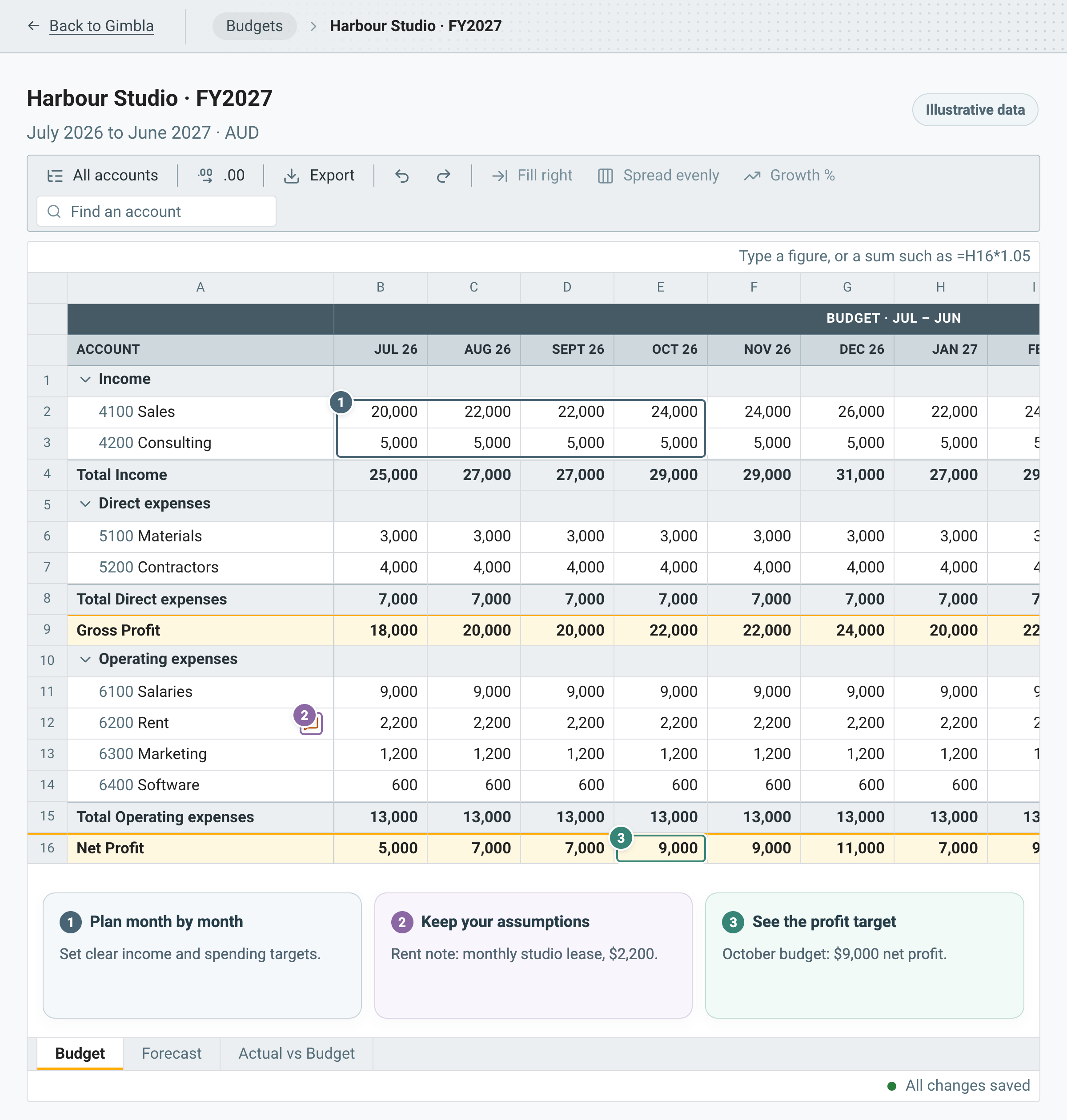
The screenshots below use fictional Harbour Studio demonstration data, with numbered notes to explain each view. All names and amounts are illustrative. Select a screenshot to open it at full size.
Build the monthly plan in Budget
Choose the period and whether the budget covers the whole business or one project. Starting from last year’s figures gives you a baseline to review; starting blank lets you build the plan account by account.
Enter figures directly or paste them into the sheet. Fill right repeats an amount across later months, Spread evenly divides a total across the period, and a growth rule helps model a gradual change. You can also use last year’s figures or set a line as a percentage of another line.
Add a note to explain an assumption, such as a rent review or an extra contractor. Changes save automatically as you work.
Update the outlook in Forecast
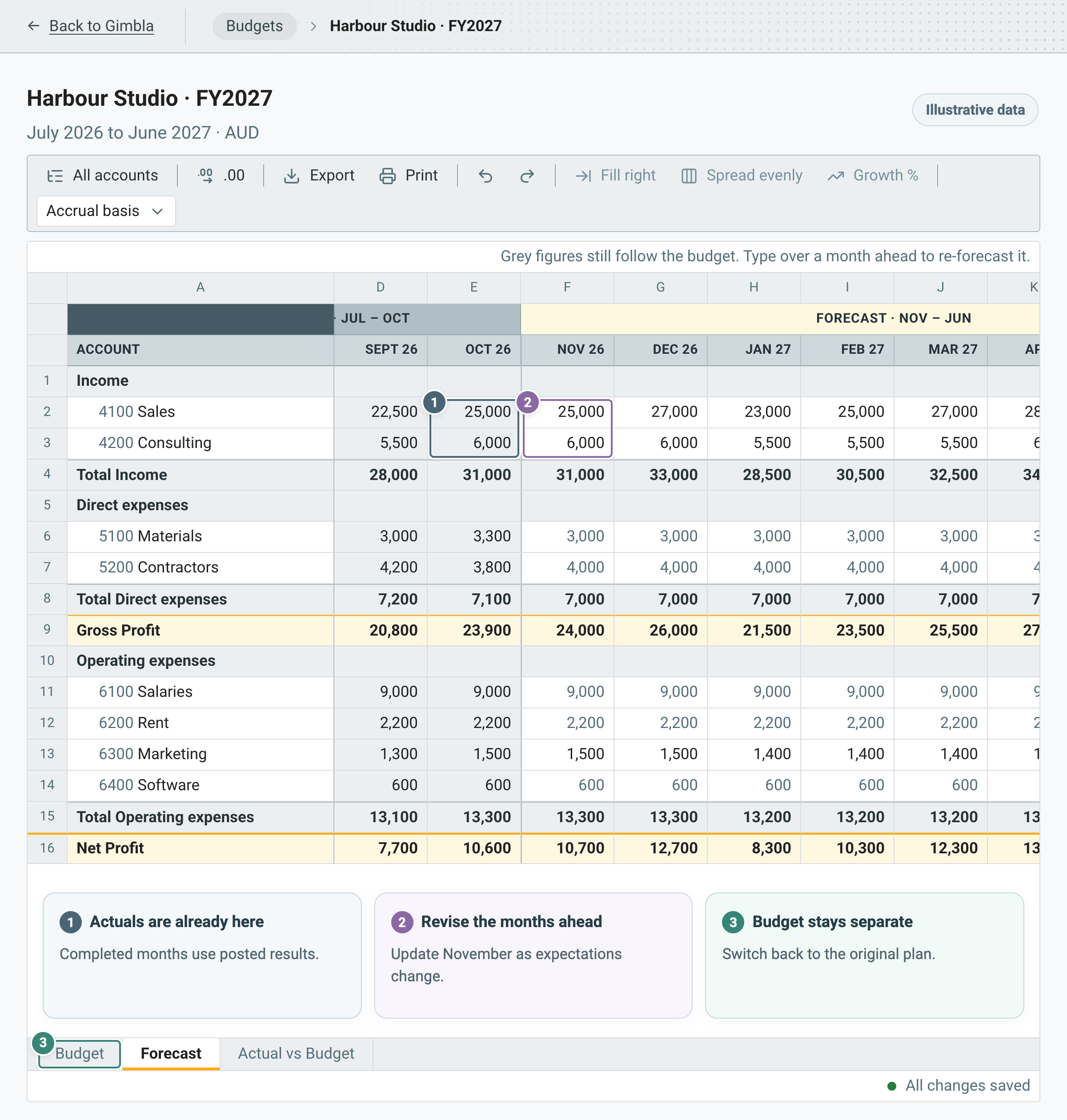
The Forecast view shows completed months as actual results and the months ahead as editable expectations. Future months follow the budget until you enter a revised figure. Clearing a forecast cell returns it to the budget amount.
If a contract moves, a supplier raises prices or a hiring decision changes, revise the affected months here. The forecast total and its difference from budget show how the expected result has moved. The original budget amounts stay separate.
These are your planning assumptions: you decide what to change. Our budget and forecast explainer covers how the two views support different decisions.
See the difference in Actual vs Budget
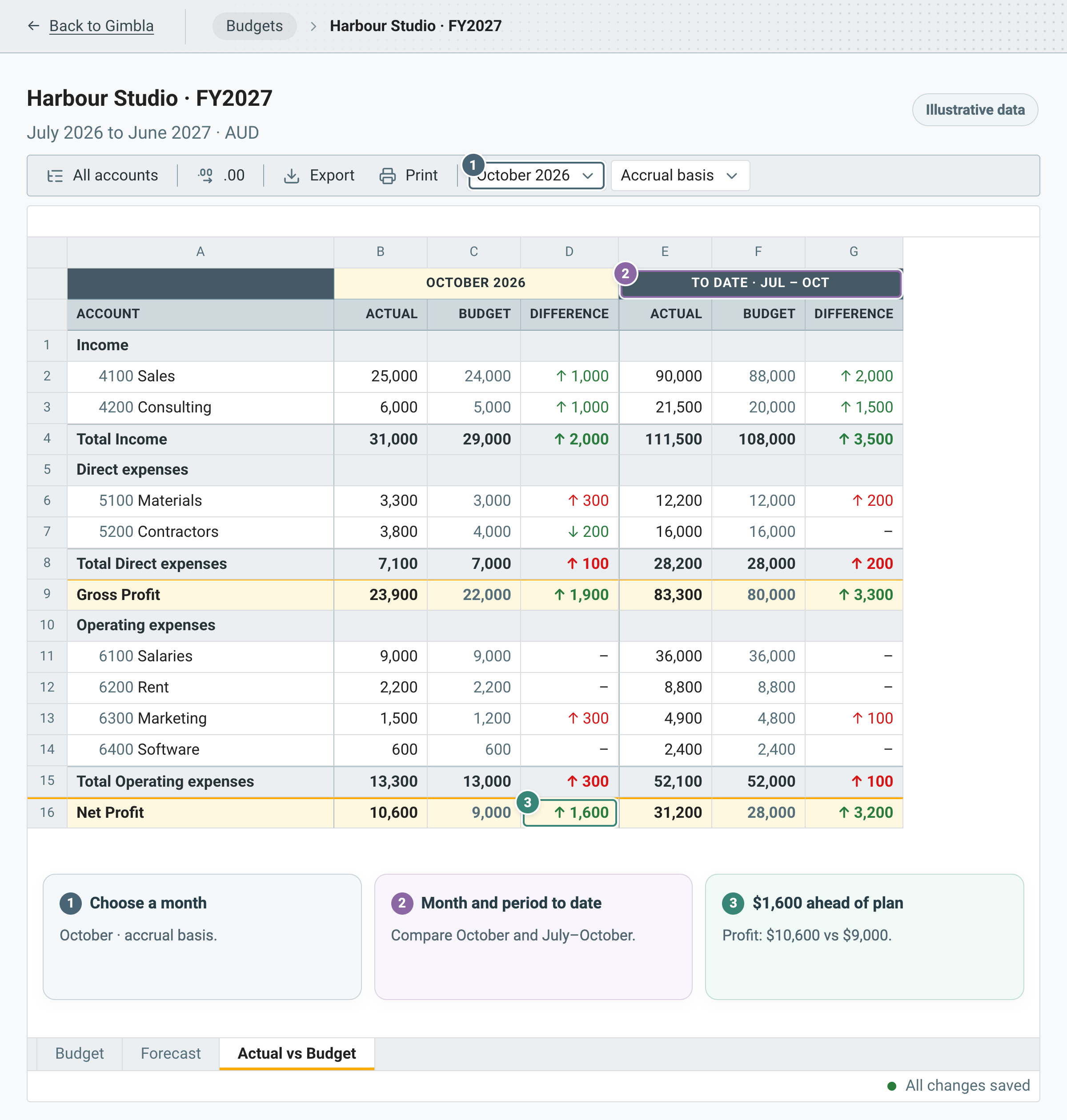
Select a month in Actual vs Budget to see actual income and expenses beside the plan, both for that month and for the period to date. Actual figures come from the posted accounting records for the business or project the budget covers.
The arrows show whether an amount is higher or lower; the colour shows its effect on the business. Higher income can help, while a higher expense can hurt. That makes it easier to identify the lines worth investigating before changing the forecast.
Choose the cash or accrual basis that suits your review and use it consistently. For the analysis behind the numbers, see how to investigate a budget variance.
Simple example
Harbour Studio budgets $29,000 in income and $20,000 in expenses for October, leaving a planned profit of $9,000. Its recorded results show $31,000 in income and $20,400 in expenses, giving an actual profit of $10,600.
The studio is $1,600 ahead of its profit target, even though expenses are $400 above plan. The owner checks which sales and costs caused the difference, then updates the remaining months in Forecast if the change is likely to continue. October’s favourable result does not automatically mean every later month should increase.
Make it part of the monthly review
- Complete the month’s invoices, bills, payroll and adjustments, then reconcile the bank.
- Review Actual vs Budget and explain the material differences.
- Update future months in Forecast using what you now know.
- Record the assumptions behind the changes and agree the next action.
- Export the view as CSV when you need to share or work with the figures elsewhere.
This approach fits the Australian Government’s budget guidance: use the budget to follow the plan and update forecasts as conditions change.
Keep cash timing in the review too. A Profit and Loss forecast helps assess income, costs and profit; a cash flow forecast also considers when money reaches or leaves the bank.
Getting started with Plus
Budgets and forecasting are included in Gimbla Plus. In your business, open Spark > Budgets, select New budget, choose the period and starting figures, then review the assumptions with your accountant or bookkeeper.
Your user permissions determine which budgets and reports you can view or change.
Frequently asked questions
Which Gimbla plan includes budgets and forecasting?
Budgets and forecasting are included in Gimbla Plus. Open Spark, then Budgets, to create a plan for the whole business or a project. Your user permissions determine which actions are available.
Does changing the forecast overwrite the budget?
No. Forecast changes are stored separately from the budget amounts. Completed months show actual results, while the remaining months use the budget unless you enter a revised forecast.
Is this a cash flow forecast?
The feature plans income and expenses in a Profit and Loss layout. You can compare actuals on a cash or accrual basis, but a bank-balance forecast also needs cash movements such as loans, equipment purchases and tax payments.